Register layouts and kitchen routing
Register layouts
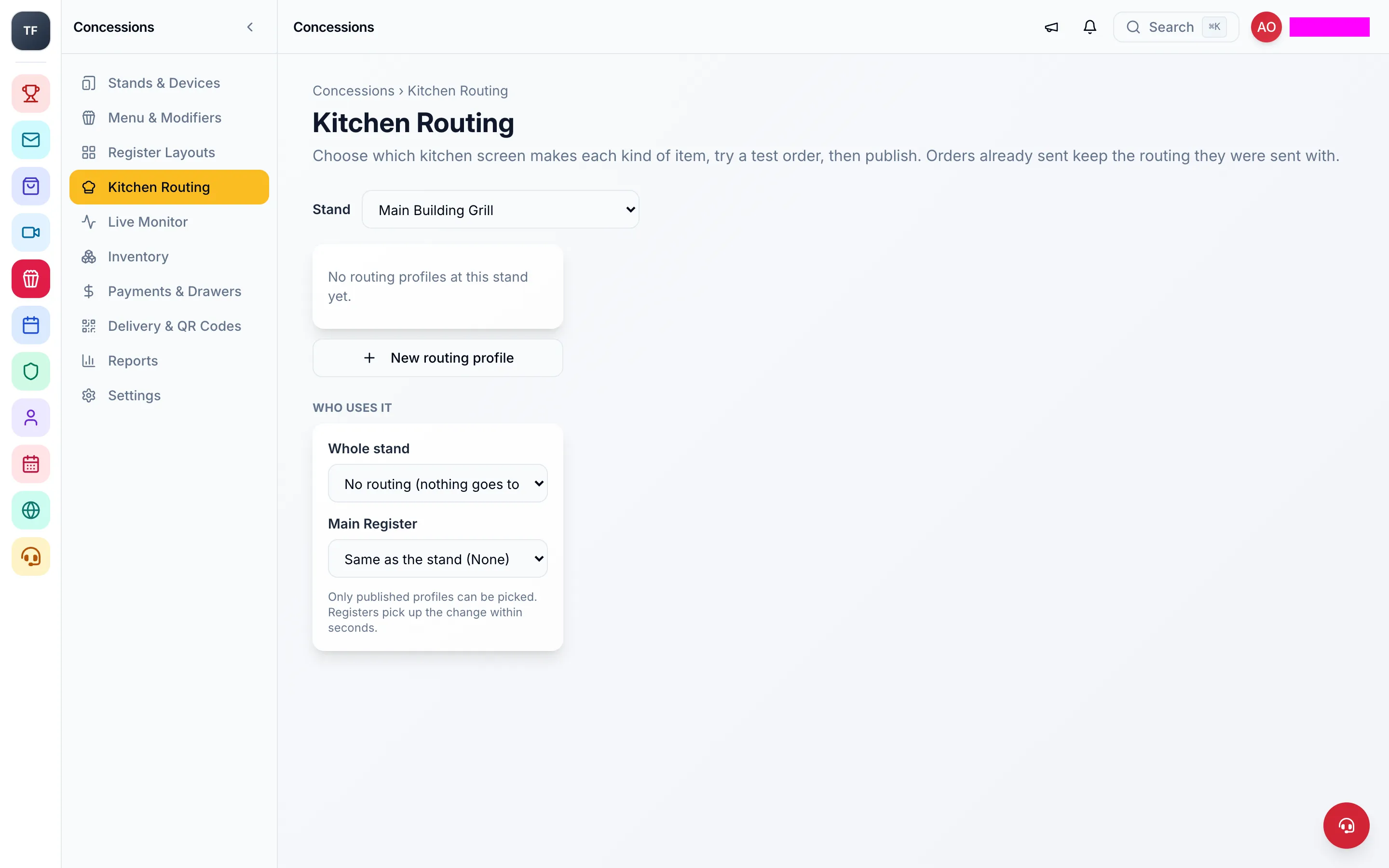
Section titled “Register layouts”Concessions › Register Layouts sets how the register touchscreen looks. Prices, tax and what’s available still come from the menu and each stand’s listings; a layout only arranges them.
- Click New layout and name it, for example “Every Day” or “Tournament Weekend”.
- On the Design tab, click + Tab to add a register tab.
- Drag items or whole display groups from Add to the grid onto the grid. A display group fills its area with its items in menu order, so items you add to the group later appear on the next publish.
- Pick a stand under Preview at to see the layout with that stand’s prices.
- Click Save draft as you go, then Publish when it’s ready.
On the Where It’s Shown tab, pick the stands and registers that use the layout. Versions lists every published version, so you can roll back to an earlier one.
Kitchen routing
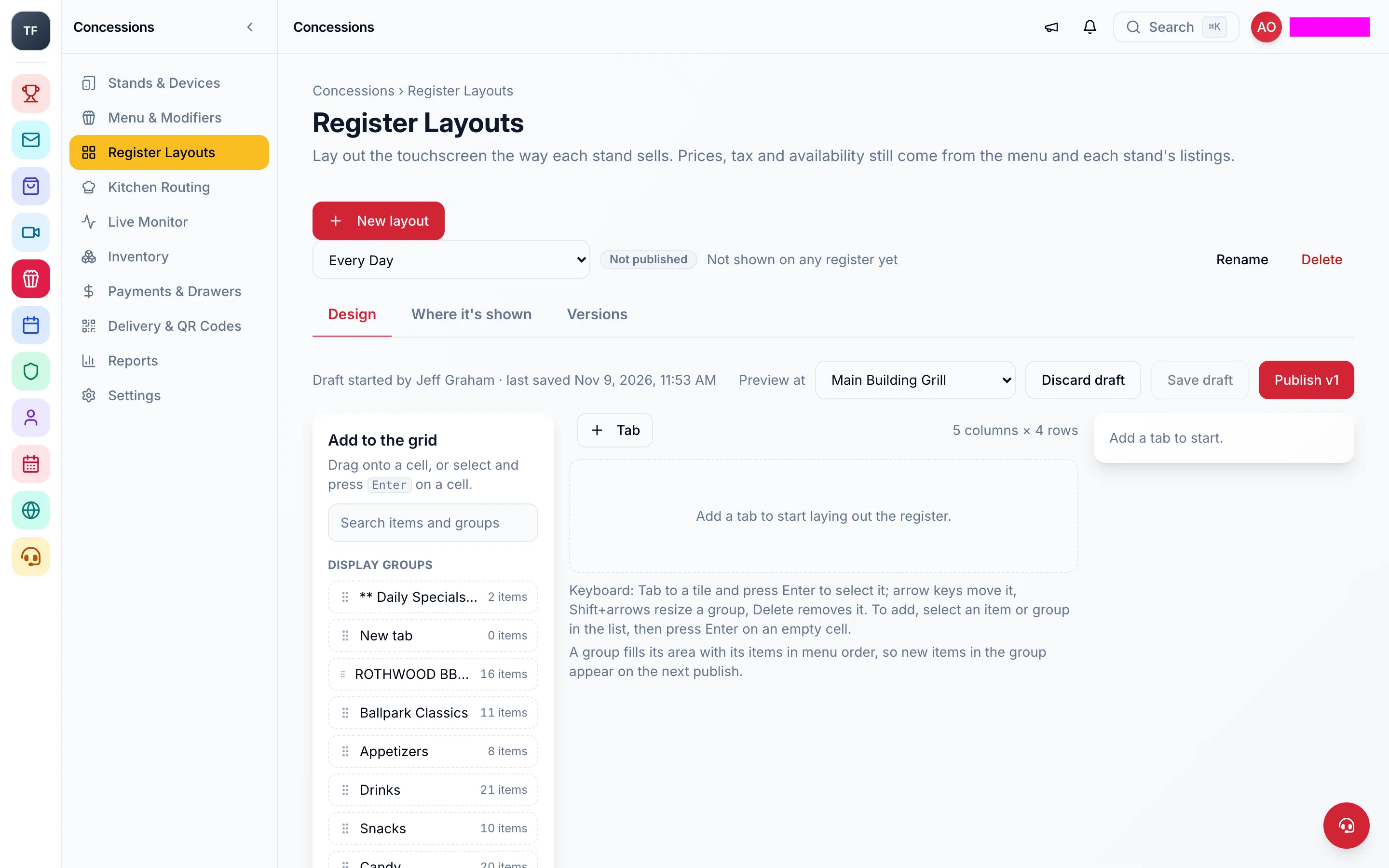
Section titled “Kitchen routing”Concessions › Kitchen Routing decides which kitchen screen makes each kind of item.
- Pick the Stand.
- Click New routing profile, then send each route key (Grill, Fry…) to a station.
- Try a test order to check where each item lands, then publish.
- Under Who uses it, pick the profile for the whole stand, or a different one for a single register. Registers pick up the change within seconds.
Orders already sent keep the routing they were sent with.