
Stands, devices and operators
Everything about where you sell is on Concessions › Stands & Devices. The page has five tabs: Stands, Devices, Operators, Settings and Workforce.
Add a stand
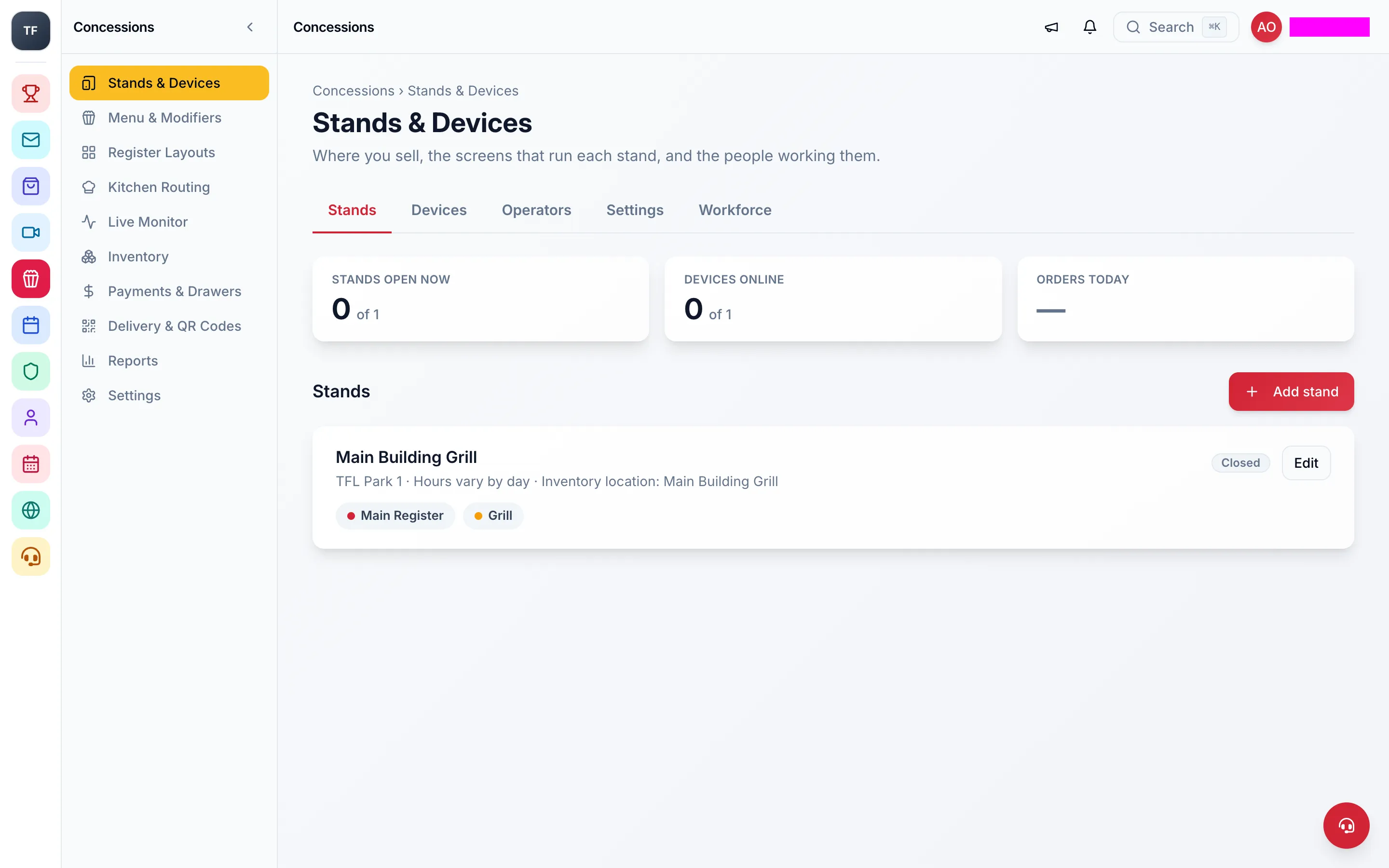
Section titled “Add a stand”- On the Stands tab, click Add stand.
- Name it (“Main Building Grill”) and pick the facility it’s at.
- Add its registers and kitchen stations. Each shows as a chip under the stand, for example Main Register and Grill.
The tiles at the top show how many stands are open now, how many devices are online, and today’s order count.
Pair a tablet or screen
Section titled “Pair a tablet or screen”Each tablet, kitchen screen, runner phone, kiosk or venue TV is paired to your league once.
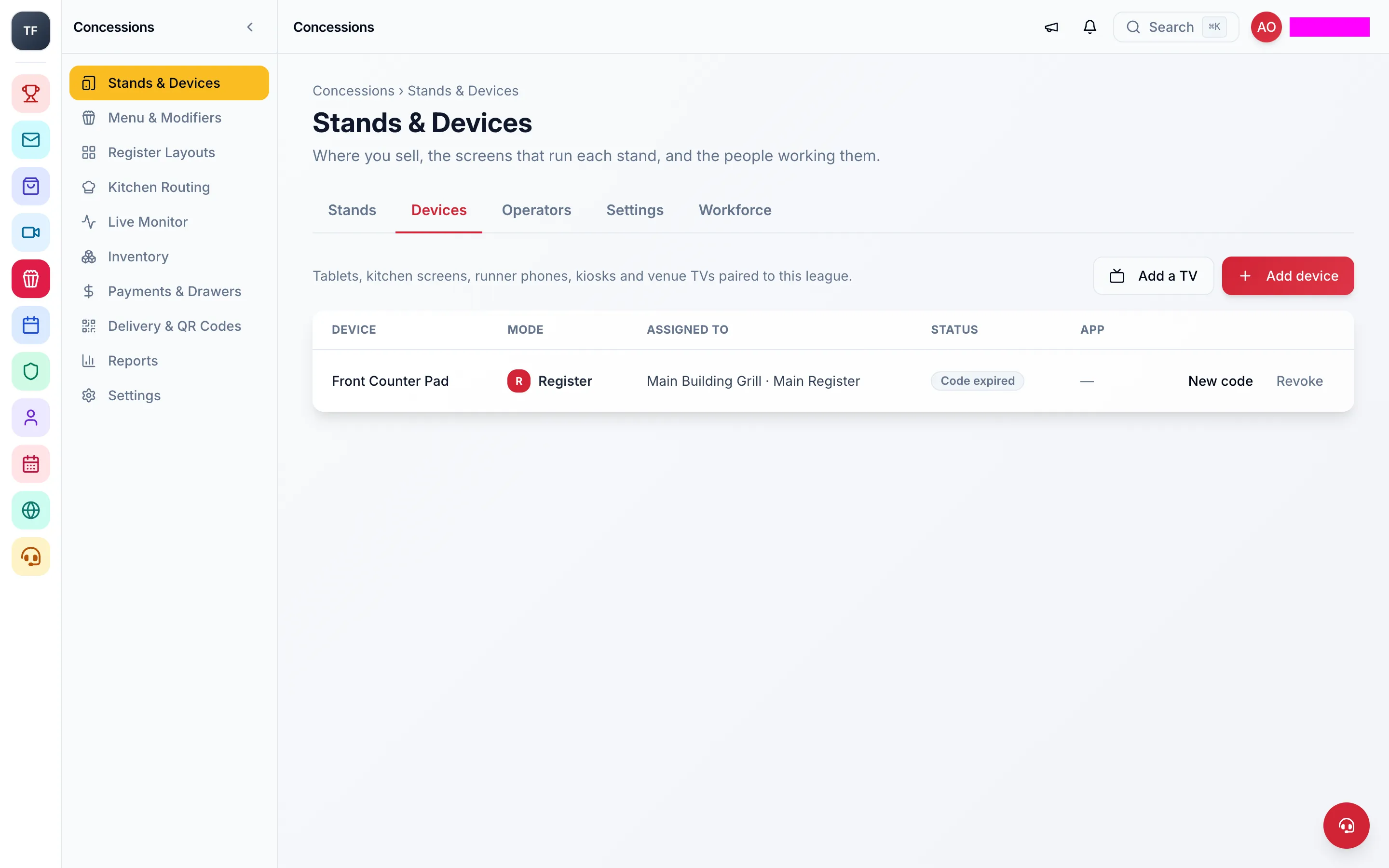
- On the Devices tab, click Add device (or Add a TV for a venue display).
- Name it, pick its stand, and pick its mode: Register, Station (a kitchen screen), Expo, Runner or Kiosk.
- A six-digit pairing code appears. It shows once and lasts 10 minutes, so keep the page open.
- On the tablet, open the G2 Concessions app and type the code.
If the code runs out before you use it, the device shows Code expired. Click New code for a fresh one. Revoke unpairs a device straight away, for example a lost tablet.
Give people a PIN
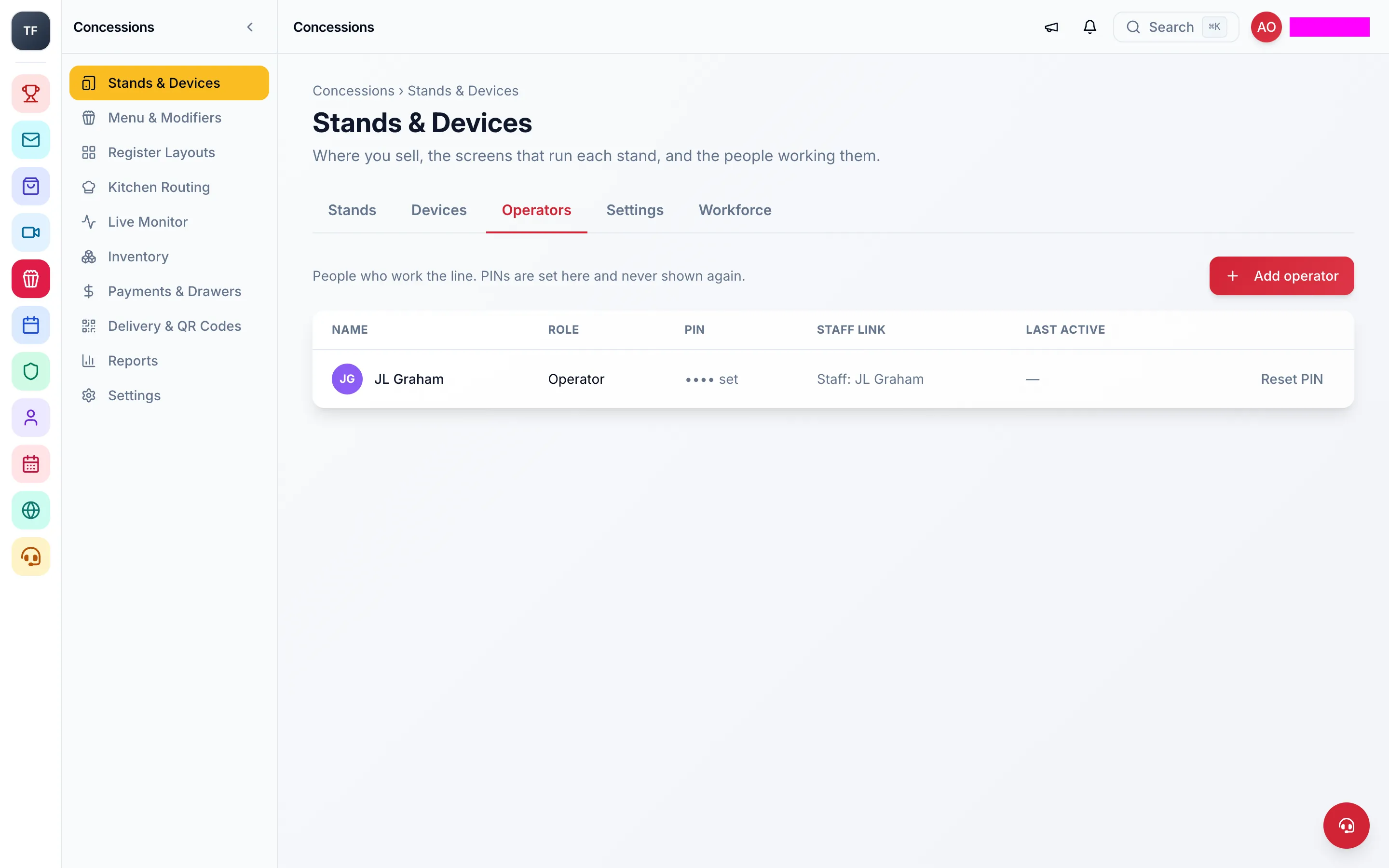
Section titled “Give people a PIN”The people who work the stand sign in to a register with a 4–6 digit PIN.
- On the Operators tab, add the person and set their PIN.
- Tick Manager for anyone who can approve voids, refunds, comps and discounts at the register.
Settings for one stand
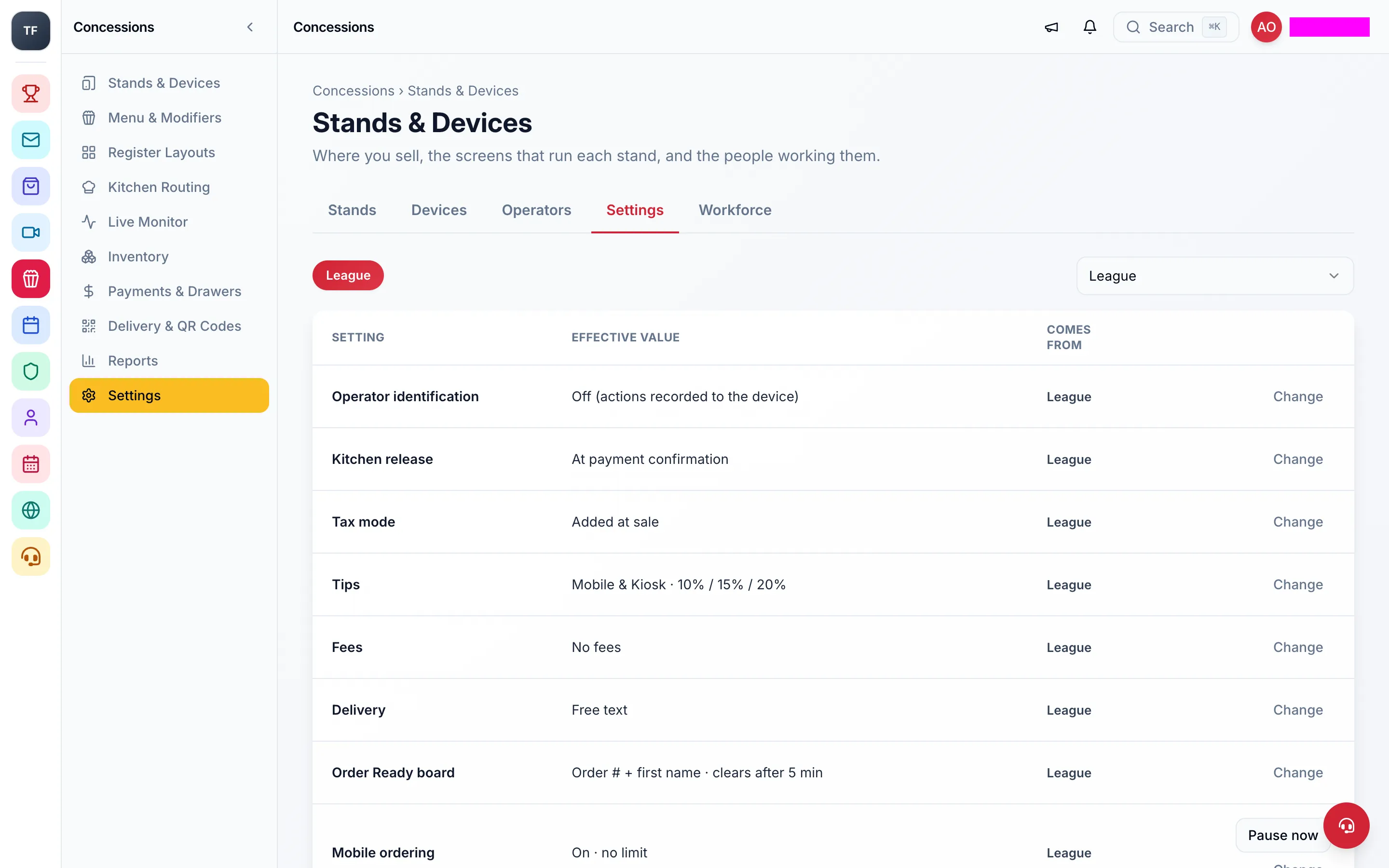
Section titled “Settings for one stand”The Settings tab shows each concessions setting, its value, and where the value comes from. A setting comes from the League unless a stand overrides it. Pick a stand at the top right to see or change that stand’s values. Click Change on any row to override it.
| Setting | What it controls |
|---|---|
| Operator identification | Whether staff enter their PIN for each sale, or sales are recorded to the device |
| Kitchen release | When an order goes to the kitchen, for example at payment confirmation |
| Tax mode | Whether tax is added at sale or already in the price |
| Tips | Where tips are offered and the suggested percentages |
| Fees | Any service fee added to orders |
| Delivery | How a guest says where to bring an order |
| Order Ready board | What the pickup board shows and how long a ready order stays up |
| Mobile ordering | Whether guests can order from their phone, and any limit |
Pause now stops new orders at the stand straight away, for example when the grill goes down.
Workforce
Section titled “Workforce”If your league uses Workforce, the Workforce tab links a stand to its shifts, so the people scheduled to work it can sign in.